Products · Attendance & check-in Now on the App Store

The Kiosk app for your front desk.

Adult Day Genie Kiosk turns a tablet at the front desk into an attendance station for your adult day center. Members check themselves in and out by face or by name. Staff see today’s list and clock in with a PIN. Admins control every tablet from the web app.

Google Play: coming soon

Requires an Adult Day Genie account. Works on iPad today; Android tablets coming soon.

  • Face or by-name check-in
  • Same append-only attendance record
  • Remote sign-out from the web app
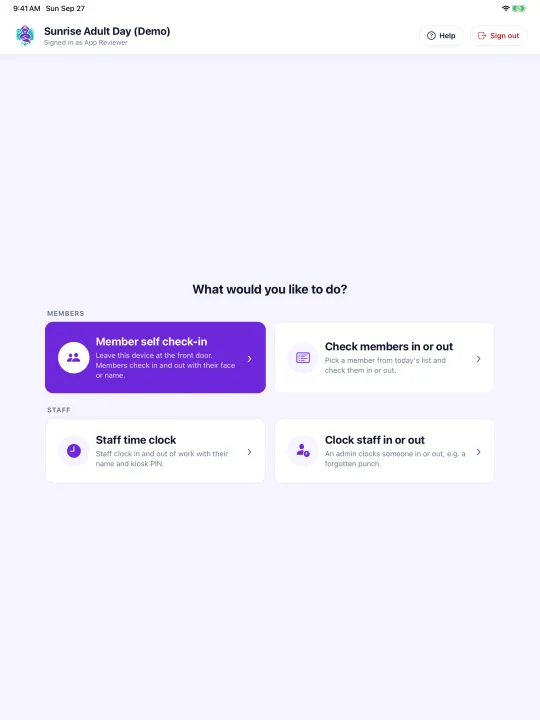
  • Kiosk home screen on an iPad with four choices: member self check-in, check members in or out, staff time clock, and clock staff in or out.
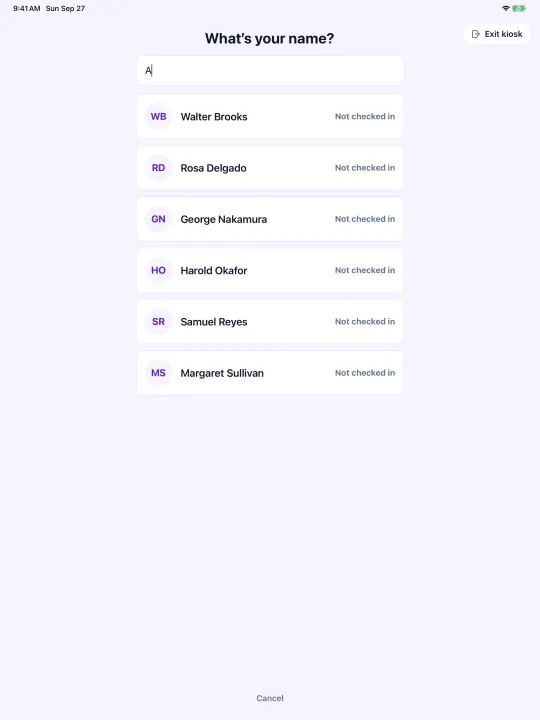
  • Check in by name: a search box with a list of members and whether each is checked in.
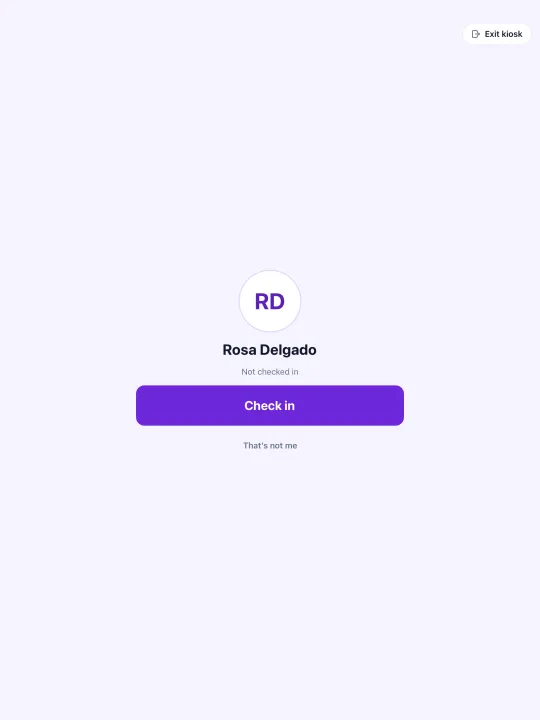
  • Confirmation screen showing a member’s initials and name with a Check in button and a “That’s not me” link.
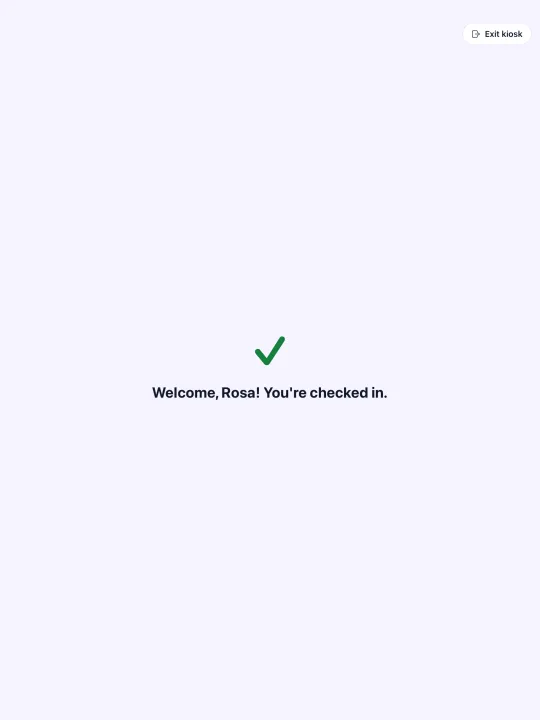
  • Green check mark with the message “Welcome, Rosa! You’re checked in.”

What the Kiosk app does

Four things, and nothing a front desk does not need. Each one writes to the same attendance record the web app, reports, and exports read from.

Kiosk Mode: members check themselves in and out

Leave the tablet at the front door in Kiosk Mode. A member walks up, checks in, and the arrival is recorded on the center’s attendance record with a timestamp. Check-out works the same way at pickup.

  • Face check-in for members the center has enrolled; face matching runs on the tablet
  • Check in by name: search the list, confirm it is you, sign
  • A clear “you’re checked in” confirmation before the screen resets

Staff: today’s member list

Staff open today’s list and check anyone in or out on their behalf, so a member who prefers help, a busy doorway, or a forgotten check-out never leaves a gap in the record.

  • Everyone expected today, with their current status
  • Check in or out with a tap
  • Same record the web app and reports read from

Staff time clock

When the center turns it on, staff clock in and out of work on the kiosk with their name and a personal kiosk PIN. An admin can clock a staff member in or out to fix a forgotten punch.

  • Personal kiosk PIN per staff member
  • Optional: each tablet offers only the features the center enables
  • Admins can correct a missed punch

Controlled from the web app

Admins decide which features each tablet offers and can sign a tablet out remotely from Settings → Kiosk in the Adult Day Genie web app. A tablet that goes missing can be cut off without touching it.

  • Per-tablet feature choices
  • Remote sign-out from Settings → Kiosk
  • Sign in with the center account; there is no sign-up in the app

Set up in an afternoon

No separate account, no new roster. The tablet joins the center you already run in Adult Day Genie.

  1. 1

    Install the app on an iPad

    Download Adult Day Genie Kiosk from the App Store. Android tablets are coming soon.

  2. 2

    Sign in with your center account

    Use the same Adult Day Genie account your center already has. The app has no separate sign-up.

  3. 3

    Choose what this tablet offers

    In the web app, open Settings → Kiosk and pick the features for this device: member self check-in, staff check-in, time clock.

  4. 4

    Put it at the front desk

    Enter Kiosk Mode and leave the tablet by the door. Attendance lands on the same record the web app, reports, and exports use.

Kiosk app questions

Direct answers to what centers ask before putting a tablet at the door.

What is the Adult Day Genie Kiosk app?

Adult Day Genie Kiosk is a tablet app that turns a tablet at an adult day center’s front desk into an attendance station. Members check themselves in and out, staff can check anyone in or out from today’s list, and staff can clock in and out with a personal kiosk PIN when the center turns that on. It is available on the App Store for iPad.

Do I need an Adult Day Genie account to use it?

Yes. The Kiosk app signs in with an existing Adult Day Genie center account. There is no sign-up inside the app; centers start at adultdaygenie.com or by booking a walkthrough.

Is face check-in required?

No. Face check-in is available only for members the center has enrolled, and members can always check in by name with search, confirm, and a signature. Staff can also check anyone in or out from today’s list.

Where does face matching happen?

Face matching runs on the tablet. The center enrolls members for face check-in in the Adult Day Genie web app; unenrolled members check in by name.

Does the Kiosk app work on Android tablets?

Not yet. The app works on iPad today and Android tablets are coming soon. The Google Play listing is in review.

Can I control what each tablet can do?

Yes. Admins choose which features each tablet offers and can sign a tablet out remotely from Settings → Kiosk in the Adult Day Genie web app.

Already a center? Download and sign in.

New to Adult Day Genie? The Kiosk app is part of the Attendance plan. Bring your current sign-in sheet to a 15-minute walkthrough and see where each column lands.

Google Play: coming soon

Requires an Adult Day Genie account. Sign in with the same account at app.adcsoftware.com to enroll members and manage tablets in Settings → Kiosk. Help: using the Kiosk app · attendance and face check-in