The Adult Day Genie Kiosk app turns an iPad at your front desk into an attendance station: members check themselves in and out, staff check anyone in from today's list, and staff can clock in and out of work. This guide walks through setup, each screen, and what to do when something does not look right.
Install the app
The Kiosk app is a free download for iPad on the App Store. Search for Adult Day Genie Kiosk or open the App Store link, tap Get, and let it install. An Android tablet version is coming soon; the Google Play listing will be linked from the Kiosk app page when it is live.
- Any iPad that runs a current version of iPadOS works. A stand at counter height, with the camera facing the door, gives the best face check-in results.
- The app has no separate sign-up and no separate price. It uses the same center account your staff already have.
- Keep the iPad plugged in and on your center's Wi-Fi. The app does not work offline (see Troubleshooting).
Before the first sign-in
An admin sets up the kiosk from the web app at app.adcsoftware.com under Settings → Kiosk. Three things happen there.
1. Decide who can sign the app in
Under Who can use the kiosk app, turn on Kiosk app access for each staff member who is allowed to sign an iPad in. Facility admins always have access. The person who signs the iPad in becomes the staff member of record for everything that kiosk does, so give access to the people who actually open the center in the morning.
2. Choose which features your kiosks offer
Each switch adds or removes a choice on the kiosk Home screen. The settings apply to every kiosk at your center; kiosks pick up a change the next time they load (turning face check-in off takes effect right away).
- Members check themselves in — the kiosk can be left at the front door so members check in and out on their own (Kiosk Mode).
- Face check-in — members are recognized by the camera. When off, members find their name instead.
- Staff check members in manually — staff can open today's member list on the kiosk and check anyone in or out.
- Staff time clock — staff clock in and out of work on the kiosk with their name and kiosk PIN.
- Managers clock staff in or out manually — a facility admin records a punch for someone else, for example a forgotten clock-out.
3. Enroll members and set staff PINs (optional)
- Face check-in only recognizes members your center has enrolled. Enrollment happens in the web app under Attendance → Face enrollment, after the member or their legal representative signs the biometric consent. See Consent for face check-in.
- The staff time clock needs each staff member to have a kiosk PIN. Staff set their own from the account menu (their name, top right) → Kiosk PIN; a manager can also set one under Settings → Users. New PINs are 6 to 8 digits.
Sign in on the iPad
Open the app and sign in with three things: your Company ID (the center code your admin gives you), your username or email, and your password. These are the same credentials you use for the web app. The iPad remembers the Company ID, so later sign-ins only ask for the username and password.
- "Invalid company ID, username, or password" means one of the three does not match. Check the Company ID first; it is the one people mistype most.
- "This account cannot be used on a kiosk" means the account does not have kiosk app access yet. An admin can turn it on under Settings → Kiosk.
- "Too many attempts" clears on its own after a short wait.
The Home screen
After sign-in you land on Home. The top bar shows the center and the person signed in, a Help button that emails support, and Sign out. Below it, one tile per feature your admin turned on:
- Member self check-in — starts Kiosk Mode. Leave the iPad at the front door and members check in and out on their own.
- Check members in or out — opens today's list for staff.
- Staff time clock — starts the time clock. Staff tap their name and enter their kiosk PIN.
- Clock staff in or out — a facility admin records a punch for someone else.
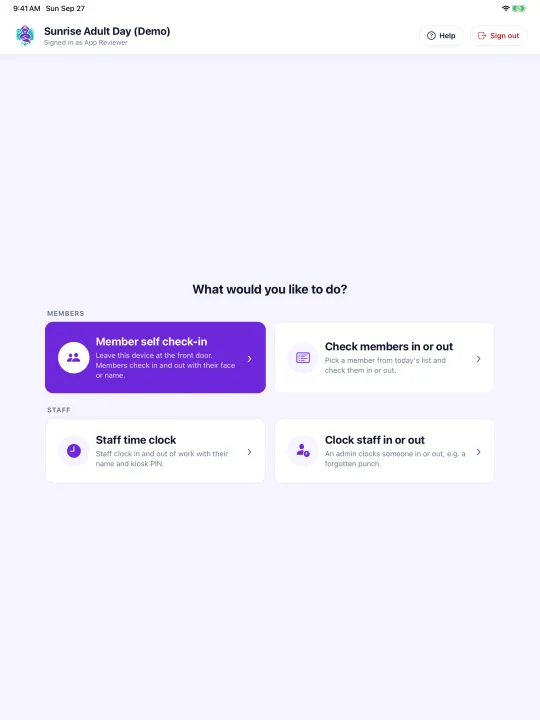
If every switch is off you will see "Nothing is turned on for this kiosk" instead of tiles. Staff screens (Home and today's list) are meant to be attended: left untouched for ten minutes, they lock back to the member-facing mode so nobody can walk up and browse the member list.
Kiosk Mode for members
Kiosk Mode is the screen members use. It offers two ways to check in, and every check-in or check-out lands on the same append-only attendance record the web app uses, with the time, the method, and the evidence captured.
Face check-in
When face check-in is on, Kiosk Mode opens on the camera. A member walks up, faces the iPad, and is checked in (or out, if they are already in) with a greeting. A few things to know:
- Only members your center enrolled, with consent on file, can be recognized. Nobody else is.
- Matching runs on the iPad. The camera stream never leaves the tablet; the app compares the live image with the face templates of your enrolled members.
- One check-in photo (a crop of the member's face) is saved to that attendance record as evidence of the visit. Nothing else from the camera is kept.
- If the camera is fairly sure but not certain, the app shows the closest match and asks the member to confirm and sign.
Check in by name
Members who are not enrolled for face check-in, or who prefer not to use it, check in by name. When face check-in is off this is the screen Kiosk Mode opens on.
- Tap Find member by name (or start typing). Type a name or client ID and the matching members appear with whether each is already checked in.
- Tap the right name. A confirmation card shows the member's name and initials with a Check in (or Check out) button and a That's not me link.
- Sign on the screen. The signature is saved with the record.
- A green check confirms it: "Welcome, Rosa! You're checked in." The kiosk returns to the camera (or the search box) after a few seconds.
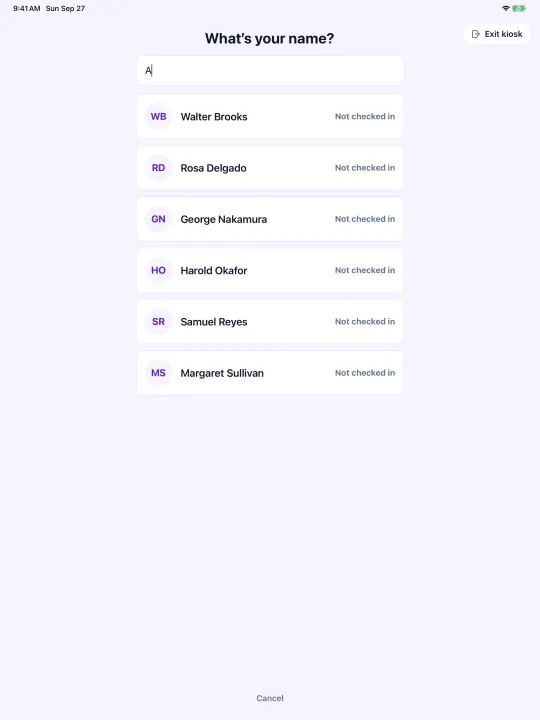
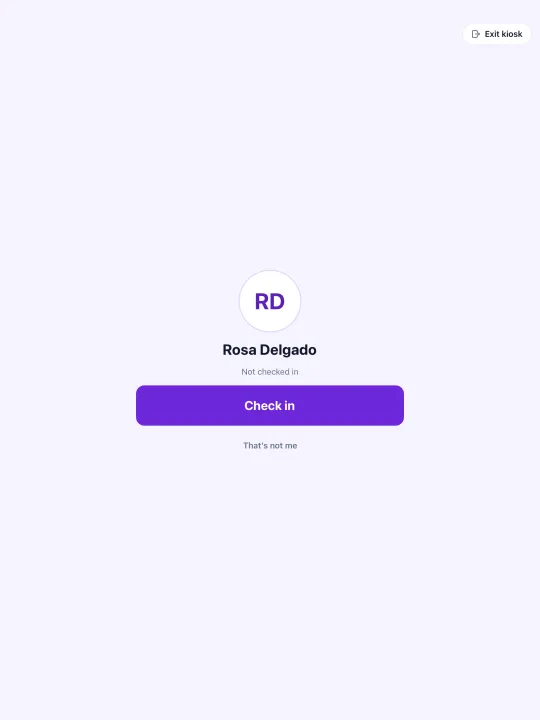
A search or confirmation left alone for 45 seconds returns to the start, and a signature screen left alone for two minutes does the same, so one member's name is never left waiting for the next person to sign.
Today's list for staff
Check members in or out opens today's list: every active member at your center, with their current status and a search box for name or client ID. Tap a member, confirm the check-in or check-out, and capture the signature on the screen. Use it when the doorway is busy, when a member needs help, or to correct a missed check-out; each entry is recorded under the staff member signed in on the iPad.
A Camera button in the header takes you back to Kiosk Mode. If the list is left untouched for ten minutes it locks back to the member-facing mode on its own.
Staff time clock
With the time clock turned on, staff clock in and out of work on the same iPad. The screen lists your staff; tap your name, enter your kiosk PIN, and the card confirms "Clocked in at 8:02 AM" or "Clocked out at 4:31 PM · 8h 29m worked". Hours appear in the web app under Attendance → Staff time clock, where a manager can review and export them.
- Staff without a kiosk PIN appear greyed out until they set one (see Before the first sign-in).
- Five wrong PINs lock that PIN for 15 minutes. The time clock never uses the camera.
- Like Kiosk Mode, the time clock is a "sticky" screen: it stays up for the next person until someone taps Exit time clock.
- Clock staff in or out (from Home) lets a facility admin fix a forgotten punch for someone else. The admin confirms with their own PIN, and the record shows who entered it.
Leaving Kiosk Mode
Kiosk Mode, the camera, and the time clock each have an Exit kiosk (or Exit time clock) button that returns to Home. It does not ask for a PIN or a password: the iPad belongs to the staff member who signed it in. Because of that, the right way to keep members inside the member-facing screen is iPad Guided Access, below.
Sign out on Home ends the session for the whole device. Nobody can check in or clock in on that iPad until a staff member with kiosk access signs back in, so use it when the iPad is leaving the building, not at the end of each day.
Keep the iPad in Kiosk Mode with Guided Access
Guided Access is a built-in iPad feature that locks the screen to one app and disables the Home gesture, so a member cannot leave the kiosk, open another app, or tap Exit kiosk. Set it up once:
- On the iPad, open Settings → Accessibility → Guided Access and turn it on.
- Tap Passcode Settings → Set Guided Access Passcode and choose a passcode only staff know. You can also allow Face ID or Touch ID to end a session.
- Open the Adult Day Genie Kiosk app, sign in, and tap Member self check-in so Kiosk Mode is showing.
- Triple-click the top button (or the Home button on older iPads). Tap Start. Before you start, you can circle any part of the screen to disable it, such as the Exit kiosk button.
- To leave, triple-click again and enter the Guided Access passcode, then tap End.
Two more iPad settings help a front-desk kiosk: in Settings → Display & Brightness → Auto-Lock choose Never (the app keeps the screen awake while a kiosk screen is showing, but this covers the Home screen too), and turn off notifications for other apps so nothing pops over the check-in screen.
Sign an iPad out from the web app
You do not need to touch the iPad to sign it out. In the web app under Settings → Kiosk → iPads signed in, every kiosk at your center is listed with the staff member who signed it in and when. Tap Sign out this iPad for a tablet that is lost, retired, or signed in by someone who should not have it. The app returns to its sign-in screen within a few minutes, or the next time it is used.
- Turning off a staff member's Kiosk app access also signs out every iPad they signed in. The iPad shows "Kiosk access removed" with a Sign in button.
- Deactivating a staff account in the web app has the same effect.
Troubleshooting
"Camera access is turned off"
The app asks for camera permission the first time face check-in opens. If it was declined, or turned off later, the camera screen shows this notice with an Open Settings button. On the iPad, go to Settings → Adult Day Genie Kiosk → Camera and turn it on, then return to the app. If Guided Access is running, end it first. Members can still check in by name while the camera is off.
Nothing happens when a member faces the camera
Silence is normal for anyone who is not an enrolled member of this center, so check enrollment before anything else: in the web app under Attendance → Face enrollment, confirm the member is enrolled, their face profile is active, and consent is on file. If they are enrolled, look at the room: the member should be within about an arm's length, facing the iPad squarely, with light on their face rather than a bright window behind them. Re-enrolling with a few fresh photos helps when a member's appearance has changed. In the meantime, check in by name always works.
The iPad was signed out unexpectedly
An iPad returns to the sign-in screen when an admin signed it out remotely, when the signed-in staff member's kiosk app access was turned off or their account was deactivated, or when that staff member changed their password. Sign back in with an account that has kiosk access. If it keeps happening, check Settings → Kiosk → iPads signed in to see what the web app recorded.
"No internet connection"
The kiosk needs a live connection to look up members, record check-ins, and accept time clock punches. When the connection drops it says so and keeps retrying on its own; there is nothing to tap and no backlog of check-ins to send later, so check the iPad's Wi-Fi and record attendance in the web app in the meantime. The camera screen reconnects by itself as well; a face check-in that completed as the connection dropped is held on the tablet and sent when the connection returns.
A feature is missing from Home
Tiles only appear for features turned on in Settings → Kiosk. After an admin changes a switch, the kiosk picks it up the next time it loads; sign out and back in to apply it immediately. "Nothing is turned on for this kiosk" means every switch is off.
"Incorrect PIN" on the time clock
PINs are set per staff member in the web app, not on the iPad. After five wrong tries a PIN locks for 15 minutes. If a staff member forgot their PIN, a manager can set a new one under Settings → Users. "This account can't clock other staff" means the manual punch was confirmed with a PIN that does not belong to a facility admin.
Still stuck? Tap Help on the kiosk Home screen or email support. Include the center name and what the screen said; please do not send member photos or signatures by email.
A note on privacy
The Kiosk app uses the camera for one purpose: checking enrolled members in and out at your center. Face matching runs on the iPad, face templates are created only after a signed consent, a check-in photo is saved to the attendance record as evidence of the visit, and the app never reads location, contacts, or the photo library. Your center decides which members to enroll and can delete a member's face profile at any time; attendance records themselves stay append-only. The full description, including retention, is in Section 8 of the Privacy Policy: Face check-in, biometric information, and the Kiosk app.